

If you’re searching for a reliable Google Analytics 4 organic traffic report in 2026, you’re not looking for Universal Analytics screenshots, outdated navigation paths, or vague advice that treats GA4 like a UI refresh. You need a precise, up-to-date, and actionable workflow — one that reflects GA4’s event-based data model, privacy-aware attribution, and evolving reporting architecture.
In this guide, we walk through exactly how to locate, customize, validate, and extract strategic insights from your GA4 organic traffic report — including where to find it, how to filter out noise (like branded vs. non-branded queries), how to align it with your SEO KPIs, and what to do when data appears inconsistent or incomplete. We’ll also show you how to cross-reference this report with other GA4 tools — like Explorations and custom segments — to uncover deeper user behavior patterns behind organic search performance.
Why the Google Analytics 4 Organic Traffic Report Matters in 2026
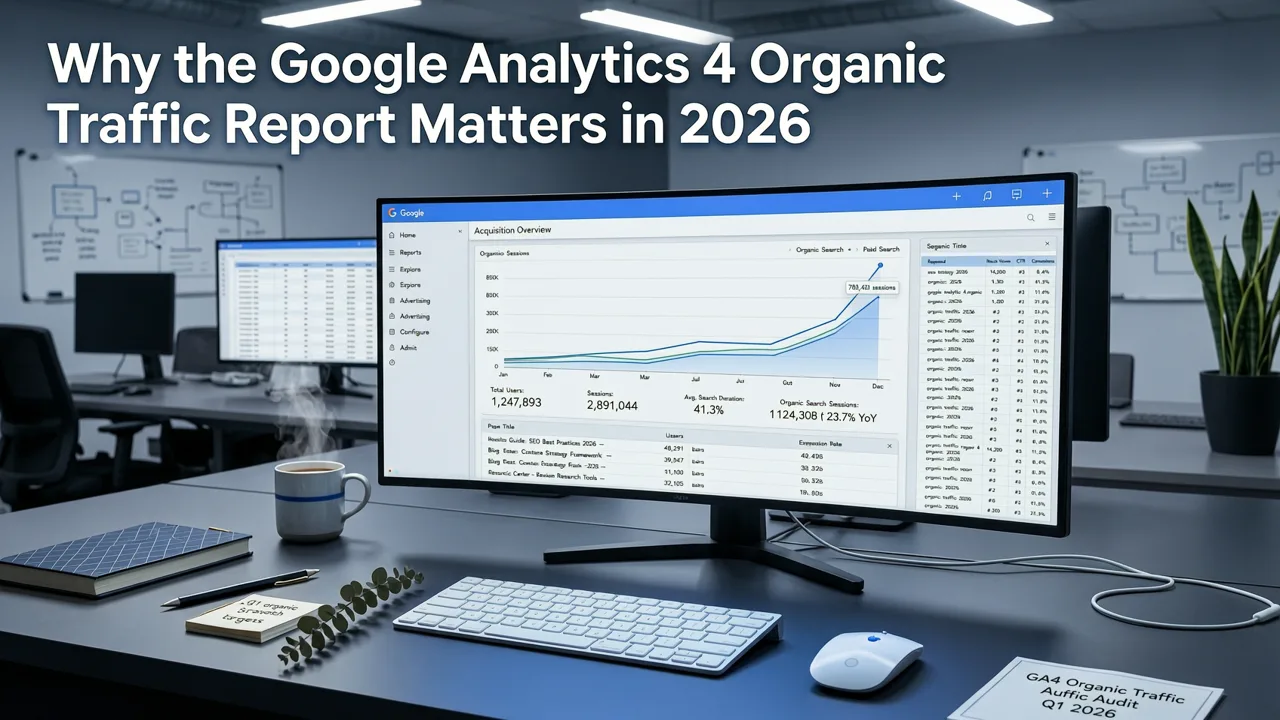
Organic traffic remains the highest-intent, lowest-cost acquisition channel for most businesses — especially those prioritizing sustainable growth over short-term paid spikes. But unlike in Universal Analytics, GA4 doesn’t surface ‘organic search’ as a default channel in legacy-style reports. Instead, it surfaces acquisition data via the Session medium and Session source/medium dimensions — which means misconfiguration, missing consent signals, or incorrect campaign tagging can silently erase or distort your organic traffic signal.
As of mid-2026, Google has tightened its enforcement of Google Search Central guidelines around tracking transparency and first-party data integrity. This makes accurate organic traffic reporting more critical — and more fragile — than ever. A flawed GA4 organic traffic report doesn’t just mislead your team; it risks misallocating SEO budget, delaying technical fixes, and undermining content strategy decisions.
That’s why understanding how to build, verify, and operationalize the Google Analytics 4 organic traffic report isn’t optional — it’s foundational to any modern SEO audit or performance review.
Where to Find the Google Analytics 4 Organic Traffic Report (2026 Path)
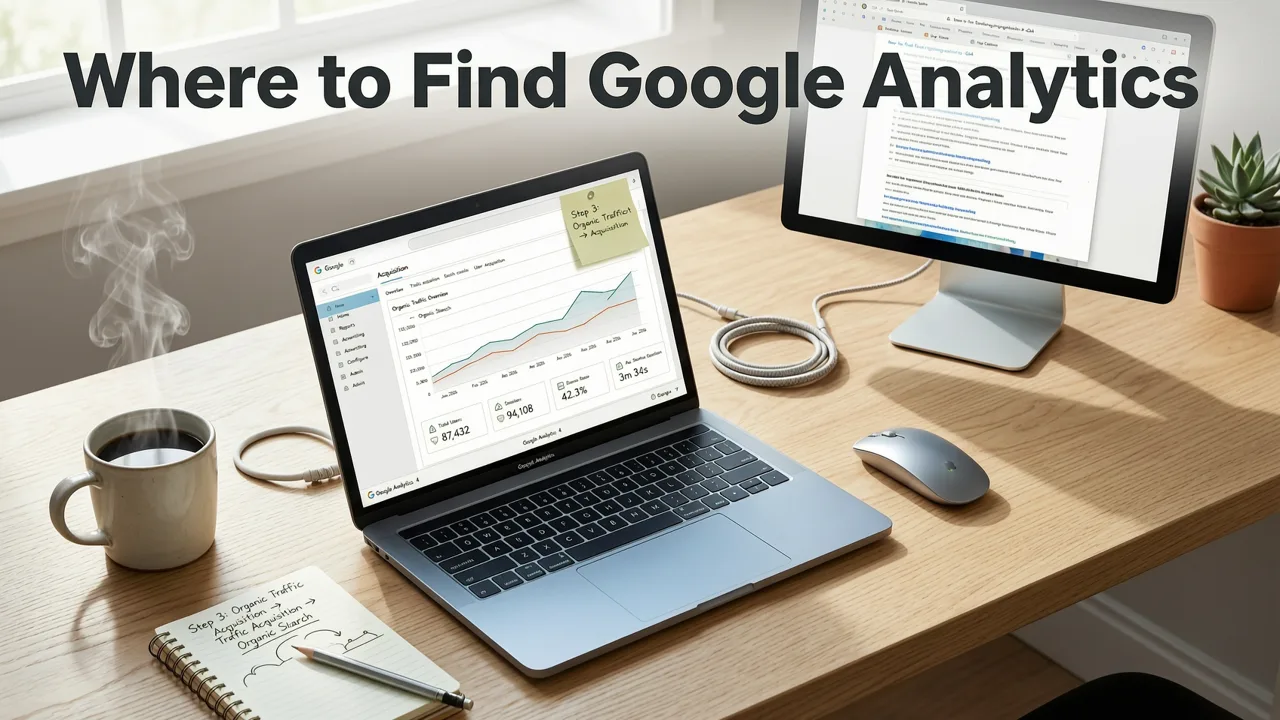
The GA4 interface has evolved since 2024 — and the path to organic traffic reporting is no longer buried under legacy menus. Here’s the current, verified navigation flow as of August 2026:
- Log in to Google Analytics 4 and select your correct property (not account or stream).
- From the left-hand menu, go to Reports → Acquisition → Traffic acquisition.
- In the main table, locate the Session source / medium column.
- Click the filter icon (funnel) next to that column and apply:
Session source / mediumcontainsgoogle / organic. - Confirm the filtered view shows only organic search sessions from Google — excluding referrals, direct, email, or paid campaigns.
This is your core Google Analytics 4 organic traffic report. It displays metrics like Sessions, Users, Engagement Rate, Average engagement time, Conversions, and Revenue (if e-commerce or goals are configured).
Note: If you don’t see google / organic in your list, check your GA4 configuration — particularly whether your domain is properly associated with Google Search Console (GSC) and whether your GA4 property has Search Console data sharing enabled. Without GSC integration, GA4 cannot attribute organic clicks to specific landing pages or query-level performance.
Pro Tip: Use the 'Acquisition Overview' Dashboard for Quick Health Checks
Before diving into granular analysis, use the Reports → Acquisition → Acquisition overview dashboard. Look for the Top channels widget. If google / organic isn’t among the top 3 channels — or if its share is declining YoY despite stable rankings — that’s an early warning sign worth investigating (e.g., indexing issues, crawl budget waste, or SERP volatility). For deeper diagnostics, pair this with our Technical SEO Checklist 2026.
How to Customize Your GA4 Organic Traffic Report for Real SEO Insights
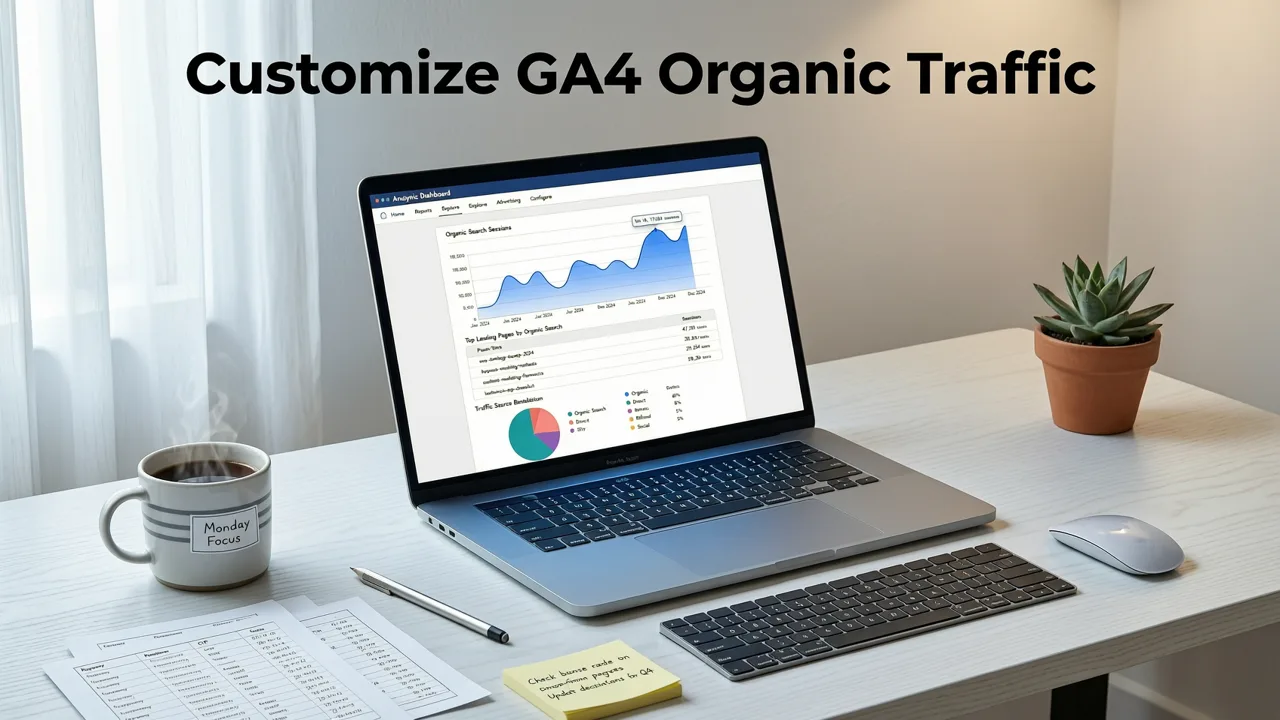
A raw google / organic filter tells you *how much* traffic you’re getting — but not *why*, *where*, or *what users do after arriving*. To turn your GA4 organic traffic report into a decision-making engine, add these essential dimensions and comparisons:
1. Add Landing Page + Query-Level Context (via GSC Integration)
GA4 alone does not show keyword-level data for organic search — due to Google’s long-standing policy of encrypted search queries. However, GA4 can import non-branded and branded keyword data from Google Search Console — if properly connected.
To activate this:
- Go to Admin → Property Settings → Search Console links.
- Ensure your GSC property is linked and verified (use the same Google account for both).
- In GA4 Reports, open Explore → Blank exploration.
- Add these dimensions: Landing page, Query (from GSC), Session source / medium.
- Add metrics: Sessions, Engagement rate, Conversions, Click-through rate (CTR) (calculated from GSC impressions/clicks).
This creates a hybrid report that merges GA4 behavioral data with GSC query intent — giving you insight into which keywords drive engaged traffic, which pages convert best, and where CTR gaps exist between ranking position and actual clicks.
2. Segment Branded vs. Non-Branded Organic Traffic
Not all organic traffic is created equal. Branded queries (e.g., “Rankonpilot SEO”) indicate brand strength and recall, while non-branded queries (e.g., “best technical SEO checklist 2026”) reflect discovery, relevance, and competitive positioning.
You can separate them using GA4’s built-in Query dimension (imported from GSC) with filters like:
- Query contains “rankonpilot” OR “rank on pilot” → Branded
- Query does not contain your brand terms → Non-branded
Compare conversion rates, bounce rates, and average session duration between the two. If non-branded traffic converts at half the rate of branded — but ranks well — it may signal mismatched content intent or poor on-page alignment. That’s where our guide on finding organic search traffic in GA4 helps refine targeting.
3. Add Time-Based Trend Analysis (7-Day, 30-Day, YoY)
GA4 defaults to a 28-day rolling window. For SEO, always compare against meaningful baselines:
- Week-over-week (WoW): Spot short-term fluctuations (e.g., algorithm updates, seasonal content launches).
- Month-over-month (MoM): Identify content momentum or decay.
- Year-over-year (YoY): Filter out seasonality and assess true growth trajectory.
Use the date selector in the top-right corner to switch views. Bonus: In Explore, create a line chart with Date on the x-axis and Sessions + Conversions on the y-axis — then overlay a trendline to spot inflection points.
Common Google Analytics 4 Organic Traffic Report Issues — and How to Fix Them (2026 Edition)
Even with correct setup, GA4 organic traffic reporting can break silently. Below are five common issues and how to fix them:
| Issue | Root Cause (2026 Context) | Fix |
|---|---|---|
| Zero or near-zero organic sessions | Missing or misconfigured GSC link; GA4 property not associated with the correct domain in GSC; consent mode blocking analytics.js before consent is given | Re-link GSC in Admin > Property Settings. Verify domain ownership in GSC. Audit your consent management platform (CMP) for GA4 initialization timing — ensure gtag('config', 'G-XXXX') fires only after consent for analytics. |
| Organic traffic inflated by internal referrals | Subdomain mismatches (e.g., blog.example.com referring to www.example.com) or cross-origin iframe embeds without proper referrer-policy headers | Set up Referral exclusion list in Admin > Property Settings > Data Filters > Referral exclusions. Add all subdomains and known internal domains. Confirm Referrer-Policy: strict-origin-when-cross-origin is set in HTTP headers. |
| Missing query data in Explorations | GSC integration enabled but only for one domain (e.g., www but not non-www); GSC property uses URL-prefix verification instead of domain property | Switch to Domain property in GSC (supports all subdomains/protocols). Re-link in GA4. Allow 48–72 hours for historical query data to backfill. |
| Discrepancy between GA4 and GSC click counts | GA4 counts sessions; GSC counts clicks. Also, GA4 excludes bounced sessions (<10 sec engagement) by default — while GSC logs every click | Compare GSC clicks vs. GA4 engaged sessions (not total sessions). Use GA4’s Engaged sessions metric in reports to align definitions. |
| Organic traffic drops after Core Web Vitals update | Page experience penalties impacting visibility — especially for mobile-first index crawlers — leading to fewer impressions, thus fewer clicks | Run a site-wide LCP, CLS, and INP audit. Prioritize fixes using our Technical SEO Checklist 2026. Cross-check affected URLs in GSC > Performance > Pages tab for impression drop correlation. |
How to Export and Automate Your GA4 Organic Traffic Report
Manually checking reports weekly doesn’t scale. Here’s how to operationalize your Google Analytics 4 organic traffic report for ongoing monitoring:
Export Options (2026 Best Practices)
- PDF/PNG: For stakeholder presentations — use the Share button in Reports or Explore. Choose ‘Download as PDF’ and include date range + filters.
- CSV/Excel: For deeper analysis — export from Explore (not standard Reports) to retain dimensions like Query and Landing page. Note: CSV exports are limited to 100k rows; use BigQuery integration for full dataset access.
- Google Sheets: Use GA4’s native Schedule email feature to auto-send weekly reports to your team’s inbox — or connect via Google Looker Studio for live dashboards with custom alerts.
Automation Setup (Looker Studio + GA4)
We recommend building a lightweight Looker Studio dashboard that pulls from GA4 and GSC simultaneously:
- Sheet 1: Organic traffic trends (Sessions, Engaged sessions, Conversions)
- Sheet 2: Top landing pages by organic conversions
- Sheet 3: Top non-branded queries by CTR and position (via GSC API)
- Add conditional formatting: Highlight pages where CTR < 5% despite top-3 rankings — indicating title/meta mismatch.
This turns your Google Analytics 4 organic traffic report into a proactive SEO health monitor — not just a rearview mirror.
What to Do After Reviewing Your GA4 Organic Traffic Report
Reporting is useless without action. Here’s how to translate GA4 organic traffic insights into high-impact SEO initiatives in 2026:
1. Prioritize Content Optimization Based on Engagement Gaps
If a top-ranking page receives high organic traffic but low engagement (<15 sec avg. time) and high bounce rate (>75%), it likely fails the user’s intent. Update headline, intro, and structure — or consider topic expansion or pillar clustering. For guidance, see our How to Increase Organic Search Traffic in 2026 guide.
2. Audit Technical Barriers to Organic Visibility
Low organic traffic despite strong keyword rankings often traces to technical blockers: canonical errors, noindex tags, slow TTFB, or JavaScript rendering failures. Run a crawl audit using tools like Screaming Frog or DeepCrawl — and cross-reference with GA4’s Landing page report to isolate underperforming URLs. Our Technical SEO Checklist 2026 gives you a prioritized, algorithm-aware framework.
3. Align with AI-Powered Content Strategy
Modern SEO isn’t just about keywords — it’s about semantic relevance, entity coverage, and E-E-A-T signals. Use your GA4 organic traffic report to identify high-opportunity topics (e.g., non-branded queries with rising impressions but flat clicks), then deploy AI-assisted content briefs, outline generation, and fact validation — all grounded in real user behavior, not speculation. For tool recommendations, explore our Best SEO Tools for Startups in 2026 roundup.
Final Thoughts: Treat Your GA4 Organic Traffic Report as a Diagnostic Lens — Not a Scorecard
In 2026, the Google Analytics 4 organic traffic report is more than a traffic counter. It’s a diagnostic lens into how well your site meets user expectations, how effectively your content matches search intent, and how resilient your technical foundation is against evolving algorithm updates. When used correctly — paired with GSC, structured data validation (schema.org), and behavioral segmentation — it becomes one of your most powerful SEO levers.
If your organic traffic report feels inconsistent, incomplete, or disconnected from business outcomes, it’s rarely a GA4 problem — it’s usually a configuration, integration, or interpretation gap. And those are fixable.


