

If you’re asking how to find organic search traffic in Google Analytics in 2026, you’re not looking for outdated Universal Analytics (UA) screenshots or vague instructions that assume GA4 is just ‘UA with a new coat of paint.’ You need a precise, up-to-date walkthrough — one that reflects GA4’s event-based model, its evolving attribution settings, and the real-world reporting gaps marketers face after Universal Analytics stopped processing data on July 1, 2023 (a year later for some Analytics 360 properties).
In this guide, we’ll show you exactly where to locate, verify, segment, and interpret organic search traffic in GA4 — using native reports, custom explorations, and critical cross-checks against Google Search Console. We’ll also explain why organic traffic numbers sometimes look suspiciously low (or inflated), how GA4’s default attribution model affects visibility, and what to do when your organic sessions don’t align with actual rankings or clicks. No fluff. No assumptions. Just actionable clarity — grounded in how GA4 actually works in 2026.
Key points
- In GA4, organic search is the Organic Search row of the default channel group. Open Reports, then Acquisition, then Traffic acquisition.
- GA4 counts a session as Organic Search when its source is on Google’s list of search sites or its medium is “organic”.
- GA4 doesn’t receive the search terms people used. For queries, use Search Console, or link it to GA4 and publish the Search Console reports from the Library.
- If organic numbers look too low, check consent settings, tag health, channel rules and indexing.
- GA4 sessions and Search Console clicks measure different things, so expect them to differ.
How to Find Organic Search Traffic in Google Analytics (2026)
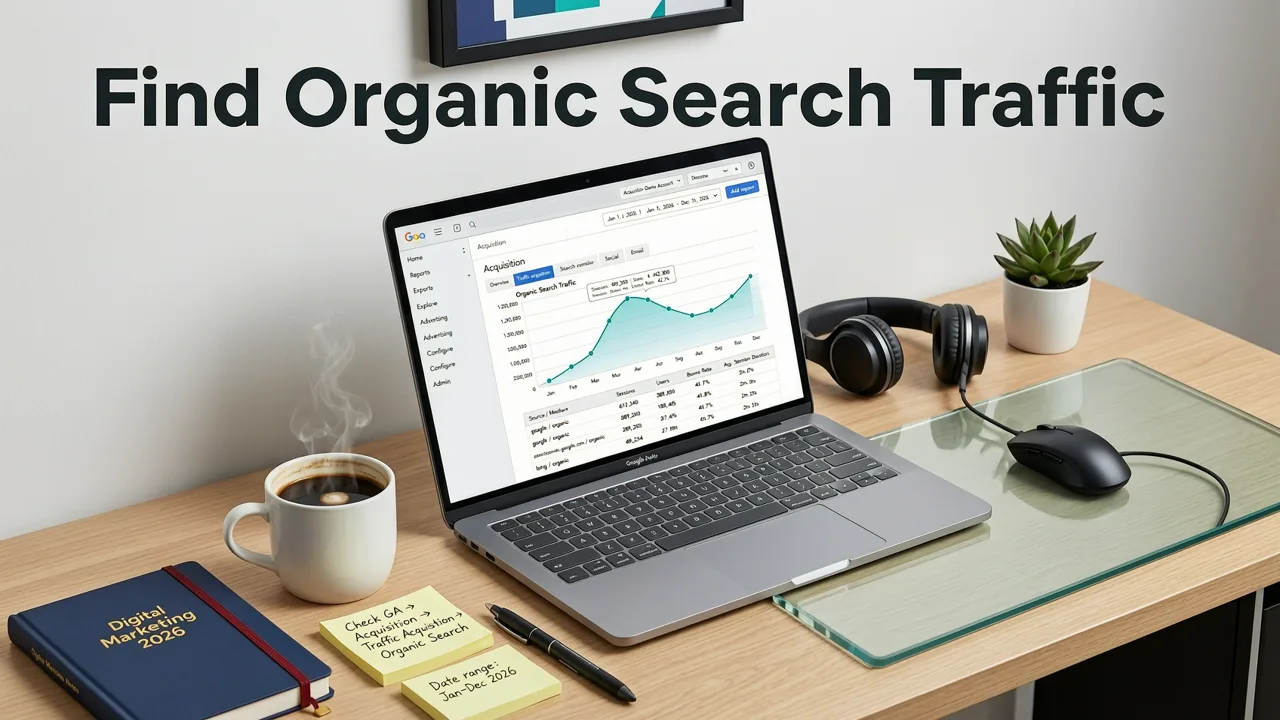
Organic search traffic in GA4 isn’t found in a single dashboard labeled “Organic Traffic.” Unlike UA, which had a dedicated Acquisition > All Traffic > Channels report with a clear ‘Organic Search’ row, GA4 shows Organic Search as one row of its default channel group, and that row appears in several reports. That means you must understand how GA4 defines and classifies organic search — and where to look for it across three core locations:
- Reports Snapshot (Home Dashboard)
- Acquisition Reports (Traffic Acquisition & User Acquisition)
- Explorations (Custom Analysis)
Let’s walk through each — step by step — with exact navigation paths and interpretation notes valid for GA4 as of mid-2026.
1. Start With the Reports Snapshot (Home Dashboard)
When you log into GA4, your default landing page is the Reports section — often called the Home Dashboard. This view shows high-level metrics like total users, sessions, engagement rate, and conversions.
To quickly spot organic search traffic here:
- Scroll down to the Acquisition card (usually the second or third module).
- Click the View full report link — this opens the Traffic Acquisition report.
- Look for the Session default channel group dimension. By default, GA4 groups sessions into channels like Organic Search, Direct, Referral, and Paid Search.
In 2026, Organic Search remains the default channel group for traffic arriving via unpaid Google, Bing, DuckDuckGo, Yahoo, and other search engines — provided the session meets GA4’s rule for Organic Search: the source is on Google’s list of search sites, or the medium is exactly organic. Note: This classification happens automatically at ingestion — no manual tagging required for most organic traffic.
2. Navigate to the Traffic Acquisition Report
This is the most reliable, out-of-the-box location to find organic search traffic in GA4. Here’s how to get there:
- In the left sidebar, click Reports.
- Under Acquisition, select Traffic Acquisition.
- In the main table, ensure the primary dimension is set to Session default channel group (it usually is by default).
- Locate the row labeled Organic Search.
You’ll see key metrics alongside it:
- Sessions: Total number of sessions attributed to organic search.
- Users: Unique users who initiated at least one organic search session.
- Engagement rate: % of organic sessions that were engaged: they lasted longer than 10 seconds, had a key event, or had 2 or more page or screen views.
- Average engagement time: Mean time users spent actively engaging during organic sessions.
- Key events: Actions you’ve marked as important, such as form submissions or purchases (GA4 used to call them conversions), from organic search — assuming you’ve set them up.
Pro tip for 2026: GA4 now supports secondary dimensions directly in this report. Click the + icon next to the primary dimension and add Session source / medium. This reveals which specific engines drive your organic traffic — e.g., google / organic, bing / organic, or duckduckgo / organic. This is essential for diagnosing platform-specific drops or growth.
3. Use Explorations for Deep-Dive Organic Traffic Analysis
For advanced segmentation — like filtering organic traffic by landing page, device type, geographic region, or conversion path — use GA4’s Explorations hub. This is where you build custom analyses beyond canned reports.
Here’s how to create a simple but powerful organic search exploration:
- In the left sidebar, click Explore.
- Select Blank (or use the Funnel Exploration template if analyzing conversion paths).
- In the Variables panel (top-left), click Segments → + New segment.
- Name it Organic Search Only.
- Under Conditions, set:
- Session source / medium contains
organic
^.*\/organic$) - Session source / medium contains
- Apply the segment to your exploration.
- Add dimensions like Landing page, Country, or Device category to rows.
- Add metrics like Sessions, Engaged sessions, and Purchase revenue.
This lets you answer questions like:
- Which blog posts drive the most organic engagement on mobile?
- What’s the organic conversion rate for users from Germany vs. Canada?
- How many organic sessions came from pages with structured data markup (e.g., FAQ or How-To schema)?
And yes — you can correlate organic behavior with schema usage. Since GA4 doesn’t natively track schema implementation, pair this analysis with your Schema.org validation logs or crawl data from tools like Semrush or Screaming Frog to isolate performance differences.
Why Organic Search Traffic Might Be Missing (or Misreported) in GA4
It’s common — especially in 2026 — to see organic search traffic that’s significantly lower than expected, inconsistent with Google Search Console (GSC), or even zeroed out. Here are the top five root causes — and how to fix them:
1. Missing or Incorrect GSC Linkage
GA4 does not pull keyword-level organic data from Google Search Console by default. It only surfaces aggregated impressions/clicks if you explicitly link GSC to your GA4 property — and only for domains verified in both platforms.
Fix:
- In Admin, under Product links, click Search Console links.
- Click Link and select your verified GSC property.
- Search Console data reaches GA4 48 hours after Search Console collects it. The two Search Console reports (Google Organic Search Queries and Google Organic Search Traffic) are unpublished at first: publish the Search Console collection from the Library to see queries, landing pages, impressions, CTR and average position.
Note: a web data stream can be linked to only one Search Console property, so link the property for your canonical domain. A Domain property covers www and non-www.
2. Default Channel Grouping Overrides Your Source/Medium
GA4 uses a predefined default channel grouping rule set. If your UTM parameters or referral logic conflict with these rules, organic traffic may be misclassified as Direct or Referral.
Example: A user clicks a link from a Google News snippet. GA4 may read the referrer as news.google.com and assign medium = referral — even though the origin is Google’s organic index. Similarly, iOS privacy restrictions (ITP, App Tracking Transparency) increasingly cause organic referrals to appear as (direct) / (none).
Fix:
- Review the channel rules in Admin, under Data display, in Channel groups. The default channel group can’t be edited, so create a custom one.
- Create a custom channel grouping that adds conditions like:
Source contains 'google' AND Medium is '(not set)' → Organic Search
Source contains 'bing' AND Medium is '(not set)' → Organic Search - Apply the custom grouping to all relevant reports.
3. Server-Side Tagging or Consent Mode Interference
Some sites send GA4 data through server-side tagging. Whatever the setup, if consent mode isn’t configured correctly — especially for analytics_storage — organic sessions may be dropped before they reach GA4.
Similarly, aggressive cookie consent banners that block analytics until explicit opt-in can suppress organic session counts, particularly in EU and UK markets.
Fix:
- Verify consent mode with Google Tag Assistant.
- Test organic search flow manually: Clear cookies → search your brand on Google → click result → confirm GA4 debug view shows
gtag('event', 'page_view')firing with correctsourceandmedium. - Use GA4’s Data Streams > Tags diagnostic panel to monitor tag health and consent signal status in real time.
4. Cross-Device Behavior & Modeling Gaps
GA4’s modeling — used to estimate conversions from unobserved touchpoints — treats organic search differently depending on your attribution model. In 2026, GA4’s default data-driven attribution (DDA) model gives partial credit to organic search even when it appears earlier in the path. But if you’ve switched to last-click (still common for simplicity), organic traffic that assists but doesn’t close will be undercounted in conversion reports.
Also, GA4’s identity space relies heavily on first-party signals. When users switch devices (e.g., research on mobile, convert on desktop), organic search on one device may not connect to the conversion on another — unless you send a User-ID for signed-in users.
Fix:
- Compare First user source / medium vs. Last non-direct source / medium in an Exploration to assess organic’s role in discovery vs. conversion.
- Enable User ID tracking if you have authenticated users — this dramatically improves cross-device organic attribution.
- Run a 30-day test comparing DDA vs. last-click attribution for organic-assisted conversions.
5. Technical SEO Issues Preventing Indexation or Crawling
No amount of GA4 configuration matters if your pages aren’t appearing in search results. Low organic traffic may not be a GA4 problem — it may be a technical SEO failure.
Common culprits in 2026 include:
- Incorrect
robots.txtblocking search engine crawlers. - Missing or malformed canonical tags causing duplicate content dilution.
- Slow LCP or poor INP. Google “highly recommend[s]” good Core Web Vitals for success with Search.
- Unstructured or inaccessible navigation preventing deep-page discovery.
Fix:
- Run a full technical audit using our Technical SEO Checklist 2026 — it includes updated pass/fail thresholds for Core Web Vitals, JavaScript rendering integrity, and crawler-access diagnostics.
- Check GSC’s Page indexing report and URL Inspection tool for live indexing status.
- Validate structured data with Google’s Rich Results Test — especially for product, article, and local business schemas.
How to Cross-Check Organic Traffic: GA4 + Google Search Console
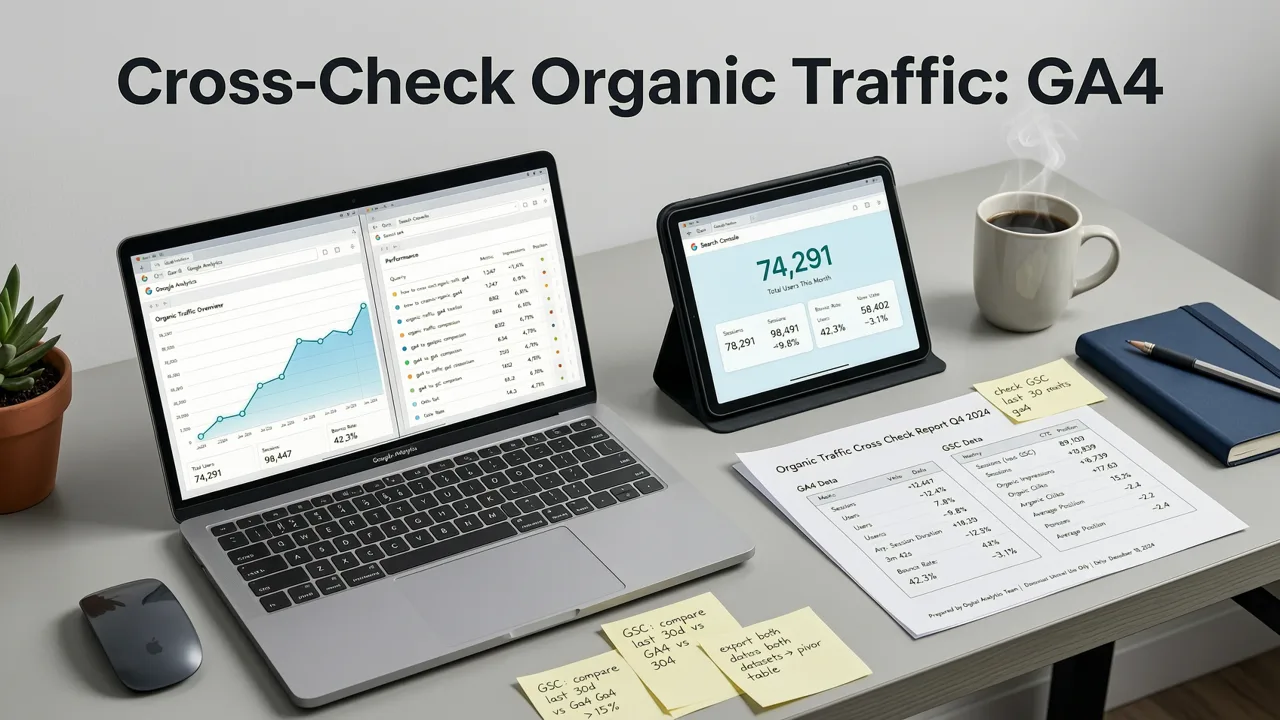
GA4 tells you what users did after arriving. Google Search Console tells you what users saw and clicked in search results. They’re complementary — not interchangeable. Here’s how to align them:
| Metric | GA4 Source | GSC Source | Why They Differ (2026 Reality) |
|---|---|---|---|
| Sessions | Traffic Acquisition report → Organic Search row | Performance report → Total clicks | GA4 counts sessions; GSC counts clicks. One click ≠ one session (e.g., bounce, tab switch, ad blocker). |
| Landing Pages | Acquisition → Traffic Acquisition → Organic Search → Secondary dim: Landing page | Performance → Pages tab | GSC shows all indexed pages receiving impressions — even if GA4 hasn’t tracked a session (e.g., due to consent blocking). |
| Keywords | Not available natively (unless using GA4 + GSC linkage + Exploration) | Performance → Queries tab | GA4 never receives keyword data from Google due to encryption. GSC is the *only* trusted source for query-level insight. |
| Impressions | Not tracked | Performance report → Total impressions | Impressions reflect visibility; sessions reflect action. A 0.5% CTR means ~200 impressions per 1 organic session. |
Best practice in 2026: Build a weekly reconciliation dashboard that pulls:
- GA4 Organic Sessions (last 7 days)
- GSC Organic Clicks (same period)
- GSC Avg. Position (top 3, top 10, #11–20)
- Top 5 organic landing pages (by GA4 sessions)
- Top 5 organic queries (by GSC clicks)
Discrepancies >15% warrant investigation — starting with consent settings, tag health, and GSC linkage status.
Advanced Tip: Segment Organic Traffic by Content Intent
In 2026, organic search success hinges less on volume and more on intent alignment. Not all organic traffic is equal: A user searching “best CRM for startups” has higher commercial intent than someone searching “what is a CRM?”
You can segment organic traffic by content type using GA4’s Page path or Page title dimensions — but for true intent fidelity, layer in semantic categorization:
- Commercial Investigation: Pages with pricing, comparisons, or feature lists → filter by
/pricing,/compare, or title contains “vs”, “alternatives”, “best”. - Informational: Blog posts, guides, definitions → filter by
/blog/,/guide/, or title contains “how to”, “what is”, “explain”. - Local: Service-area pages, location pages → filter by
/service/,/location/, or title contains city/state names.
This segmentation helps prioritize content updates and informs your organic growth strategy. For example: If informational organic traffic converts at 0.8% but commercial-intent traffic converts at 4.2%, double down on optimizing product pages — not just blog volume.
Frequently Asked Questions
Below are answers to common questions about organic search traffic in GA4.
Can I see keyword data for organic search in GA4?
No — not natively. Google encrypts organic search keywords for privacy, and GA4 does not receive them. The only official, reliable source for keyword-level organic data is Google Search Console. You can import GSC query data into GA4 via linkage, but it appears in the Search Console report — not in standard acquisition tables.
Why does my GA4 organic traffic differ from SEMrush or Ahrefs?
Third-party SEO tools estimate organic traffic using click-through rate (CTR) models, ranking positions, and historical SERP data — not actual session counts. GA4 measures real user behavior on your site, so the two rarely match. Use tools like SEMrush for opportunity forecasting; use GA4 for performance validation.
Does GA4 track organic traffic from Bing or DuckDuckGo?
Yes — but only if the traffic arrives with identifiable source/medium values (e.g., bing / organic, duckduckgo / organic). Some privacy-focused engines (like Startpage or Searx) may send generic referrers, causing misclassification as Direct or Referral. Use custom channel groupings to capture these reliably.
Is there a way to exclude branded organic traffic in GA4?
Not in GA4 itself. GA4 doesn’t receive the search terms people used, so it can’t tell branded from non-branded organic visits. Use Search Console instead: in the Performance report, filter for queries that don’t contain your brand name.
How often does GA4 update organic traffic data?
In a standard GA4 property, intraday data usually arrives within 2–6 hours and each full day within about 12 hours, according to Google’s data freshness guide. The Realtime report shows only the last 30 minutes. For decisions, use the standard reports and give the latest day time to finish processing.
Conclusion: Organic Search Traffic Is a Signal — Not the Full Story
Finding organic search traffic in Google Analytics is the first step — not the destination. In 2026, raw session counts tell you little without context: Are those users engaging? Converting? Returning? Coming from high-intent queries or vanity keywords? And most critically — are they arriving because your site is technically sound, content-rich, and aligned with how people actually search?
If your organic traffic is flat or declining, don’t just tweak GA4 filters. Audit your technical foundations, refine your intent architecture, and invest in E-E-A-T-aligned content — whether built in-house or accelerated with AI-powered writing.


