

Why Tracking Organic Search Traffic in Google Analytics 4 Matters in 2026
If you want to understand how your SEO efforts are actually performing, the first place to look is your organic search traffic in Google Analytics 4. Unlike vanity metrics that shift with algorithm whims, organic traffic tells you whether real people are finding your content, engaging with it, and converting through unpaid search results.
The short answer: in GA4, you track organic search traffic by filtering sessions where the Session default channel group equals "Organic Search," then layering in Google Search Console data for keyword-level insights. This guide walks you through the complete 2026 workflow, from initial setup to advanced reporting.
By the end of this article, you will know exactly how to locate, filter, analyze, and act on your organic traffic data inside GA4 — plus how to build dashboards that keep your team aligned without manual report wrangling.
How GA4 Defines Organic Search Traffic
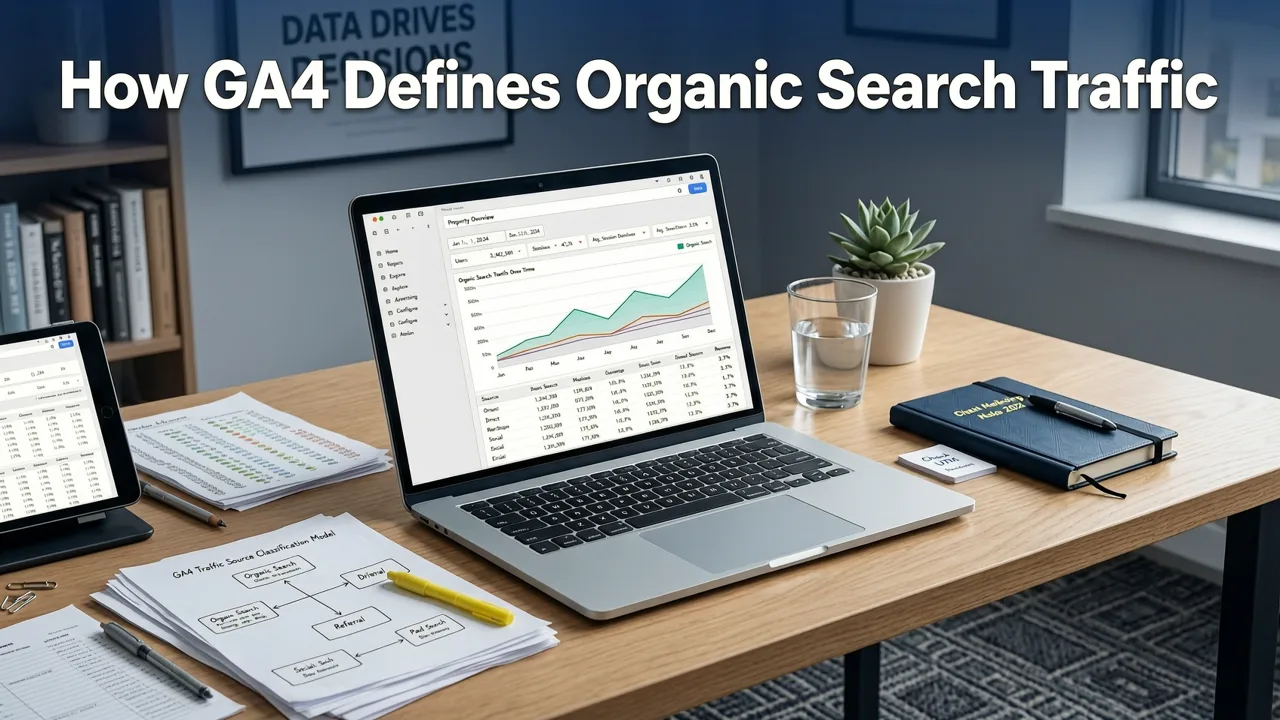
Before you pull any reports, it is important to understand how GA4 categorizes traffic. GA4 uses an event-based data model and a channel grouping framework that assigns each session a default channel based on the referring source and medium.
Session Default Channel Group: Organic Search
In GA4, a session is classified as organic search when the user arrives via an unpaid search engine result. This includes Google, Bing, DuckDuckGo, YouTube search, and other recognized search engines. The key identifier is the Session default channel group dimension set to "Organic Search."
How GA4 Differs from Universal Analytics
If you migrated from Universal Analytics, you already know the reporting experience changed dramatically. Universal Analytics relied on pageview-based sessions and a simpler channel logic. GA4, by contrast, tracks events, uses session_start events to initialize channel assignment, and recalculates channel groups based on the most recent campaign parameters at session start.
This means that a user who first arrives via organic search and later returns through a paid ad will have their first session recorded as organic, but subsequent sessions may shift channel groups. Understanding this behavior prevents misattribution when you review your organic traffic numbers.
Step-by-Step: How to Find Organic Search Traffic in GA4
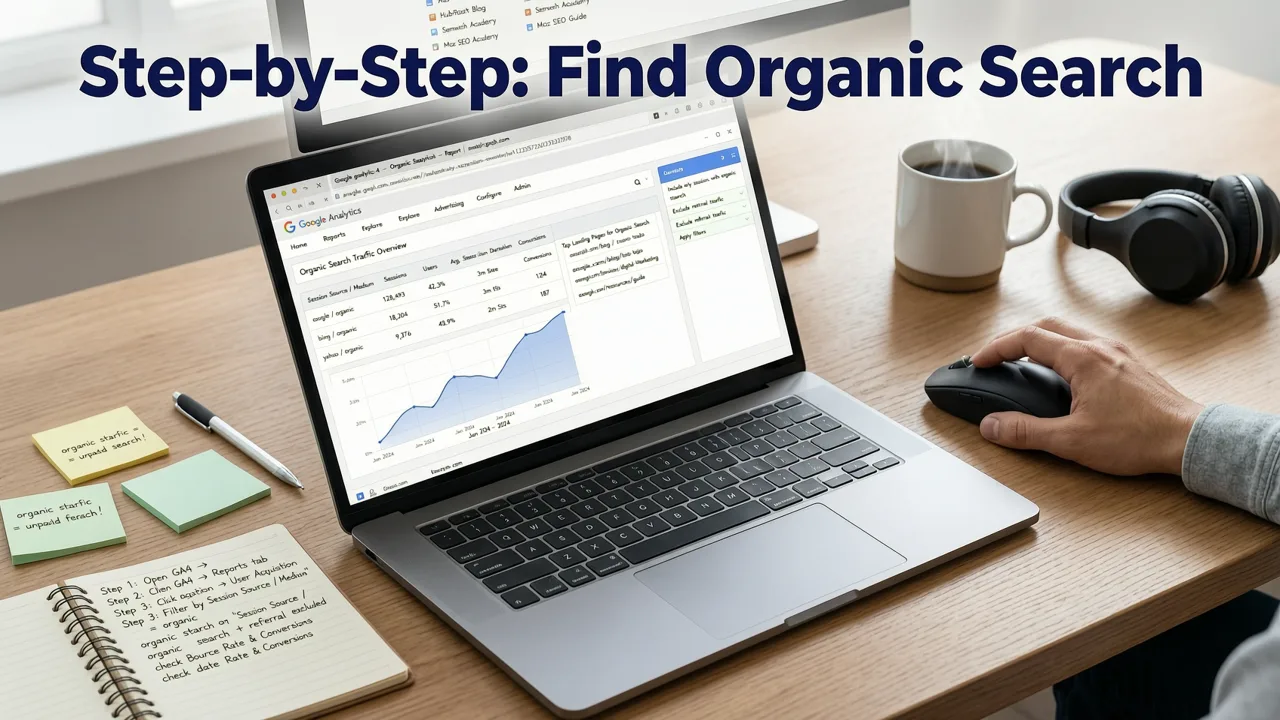
Here is the exact process to pull organic search traffic data in GA4 as of 2026.
Step 1: Open the Reports Snapshot
Navigate to Reports in the left-hand menu of your GA4 property. Click on Acquisition and then Traffic acquisition. This report shows sessions broken down by channel, source, and medium.
Step 2: Filter for Organic Search
Above the data table, click Add filter. Set the dimension to Session default channel group and the condition to exactly matches "Organic Search." Apply the filter. You now see only sessions driven by unpaid search.
Step 3: Add Useful Metrics
The default table shows sessions, but you should also add the following metrics for a more complete picture:
- Engaged sessions — sessions lasting longer than 10 seconds, with a conversion event, or with 2+ pageviews.
- Engagement rate — the percentage of sessions that are engaged.
- Event count — total events triggered during organic sessions.
- Conversions — events you have marked as key actions, such as purchases or form submissions.
Step 4: Segment by Source
To see which search engines drive the most traffic, add Session source as a secondary dimension. You will typically see Google dominating, but Bing, DuckDuckGo, and other engines may contribute meaningful volume, especially in B2B or privacy-conscious audiences.
Connecting Google Search Console to GA4 for Deeper Insights
GA4 tells you that organic traffic is arriving. Google Search Console tells you why — which queries, pages, and positions are driving those visits. Linking the two is essential for any serious organic growth strategy.
How to Link GSC to GA4
- In GA4, go to Admin (gear icon) and find Product links.
- Click Search Console links and then Link.
- Select the GSC property that corresponds to your website and choose the GA4 property to link.
- Confirm and wait up to 24 hours for data to begin flowing.
What the Integration Adds
Once linked, you gain access to the Search Console report inside GA4, which surfaces organic queries, landing pages, and average position alongside engagement and conversion metrics. This is the single most valuable view for connecting keyword performance to business outcomes.
For a deeper workflow on connecting keyword intent to conversions, check out the guide to tracking organic keyword performance in GA4.
Building a Custom Exploration for Organic Traffic
Standard GA4 reports are useful but limited. For a more granular view, use the Explorations section to build a custom report tailored to your organic traffic analysis.
Free-Form Exploration Setup
- Navigate to Explore in the left-hand menu and create a new Free-form exploration.
- Set the date range to your desired period (e.g., last 90 days).
- Add the dimension Session default channel group and filter for "Organic Search."
- Add dimensions such as Landing page, Session source, Device category, and Country.
- Add metrics including Sessions, Engaged sessions, Event count, and Conversions.
- Drag dimensions into the Rows tab and metrics into the Values tab.
Advanced: Organic Traffic by Landing Page
This exploration reveals which pages attract the most organic sessions and how those sessions perform. You can quickly identify high-traffic pages with low engagement — a clear signal that the content needs optimization — or low-traffic pages with high conversion rates, which deserve more visibility.
For a ready-made approach to visualizing this data, see the best GA4 organic traffic dashboard templates.
Organic Search Traffic vs Paid Search in GA4
Understanding the distinction between organic and paid search traffic helps you allocate budget, measure channel efficiency, and avoid double-counting sessions.
| Feature | Organic Search | Paid Search |
|---|---|---|
| Channel Group | Organic Search | Paid Search |
| Cost | No direct media cost | Per-click or per-impression cost |
| Tracking Identifier | Referrer from search engine | UTM parameters or click ID |
| Speed of Results | Slow, compounds over time | Immediate upon launch |
| Keyword Data | Mostly "not provided" in GA4; use GSC | Available via platform and UTM |
| Long-Term Value | High; traffic persists without ongoing spend | Stops when spend stops |
For a full breakdown of how GA4 treats each channel, read the organic search vs paid search comparison.
Common Mistakes When Tracking Organic Traffic in GA4
Even experienced marketers make errors when interpreting GA4 organic traffic data. Avoid these pitfalls.
Mistake 1: Confusing Channel Group with Source
The Session default channel group is a higher-level classification. The Session source tells you the specific search engine. Reporting on one without the other gives an incomplete picture.
Mistake 2: Ignoring the Engagement Rate
Sessions alone do not indicate quality. A page may receive thousands of organic sessions but have an engagement rate below 20 percent. That signals a mismatch between search intent and page content.
Mistake 3: Not Linking Google Search Console
Without the GSC integration, you are flying blind on keyword data. GA4 does not surface organic query information on its own. The integration is non-negotiable for any SEO-driven business.
Mistake 4: Overlooking Cross-Channel Behavior
Users rarely convert on their first visit. A user may discover your brand through organic search, leave, and return days later via a paid ad. GA4's cross-channel reporting helps you understand these journeys, but only if you configure your conversions and audiences correctly.
How to Benchmark and Improve Your Organic Search Traffic
Tracking is only valuable if it leads to action. Here is how to use your GA4 organic traffic data to drive real growth.
Set Baseline Metrics
Record your current organic sessions, engagement rate, and conversion volume. These become your baseline. Revisit monthly to measure progress.
Identify Content Gaps
Use the GSC integration to find queries where you rank on page two or three. These represent quick-win opportunities. Optimize the corresponding pages with better content, updated information, and improved internal linking.
Monitor Landing Page Performance
Your GA4 exploration report will show which landing pages drive the most organic sessions. Pages with declining traffic may have lost rankings due to algorithm updates or competitor improvements. Pages with growing traffic should be reinforced with internal links and fresh content.
Align SEO with Business Goals
Organic traffic is a means, not an end. Tie your organic sessions to conversions — newsletter signups, demo requests, purchases — to demonstrate ROI. This alignment is what separates tactical SEO from strategic growth.
Using Looker Studio for Organic Traffic Dashboards
If your team needs a shared, visual view of organic performance, Looker Studio (formerly Data Studio) is the standard tool for building GA4 dashboards.
What to Include in Your Dashboard
- Organic sessions trend — line chart showing week-over-week or month-over-month organic sessions.
- Top landing pages — table sorted by organic sessions with engagement rate and conversion columns.
- Top organic queries — pulled from the GSC data blend, showing queries, impressions, clicks, and average position.
- Device breakdown — pie chart showing mobile vs desktop vs tablet organic sessions.
- Country breakdown — bar chart showing organic sessions by geography.
Google provides a native Looker Studio template for GA4, and several third-party templates offer more advanced layouts. The key is to keep the dashboard focused on actionable metrics rather than overwhelming your team with data.
Technical Considerations for Accurate Organic Traffic Data
Accurate tracking requires a clean technical foundation. If your GA4 setup has issues, your organic traffic numbers will be unreliable.
Verify Your GA4 Configuration
Ensure that your GA4 property has the correct data stream, that the measurement ID is firing on all pages, and that no duplicate tags are inflating session counts. Use the GA4 DebugView and the Google Tag Assistant extension to validate.
Implement Structured Data
While structured data does not directly affect GA4 tracking, it influences how Google displays your pages in search results. Rich results can improve click-through rates, which in drives more organic sessions. Refer to the Schema.org reference for implementation guidance and the Google Search Central documentation for best practices.
Consent Mode and Data Accuracy
In 2026, consent management remains critical. If a significant portion of your visitors decline analytics cookies, your GA4 data will undercount sessions. Google's Consent Mode v2 helps mitigate this by sending anonymized pings for non-consenting users, but you should still monitor consent rates and understand their impact on your reported organic traffic.
Organic Search Traffic Trends to Watch in 2026
The organic search landscape continues to evolve. Here are the trends shaping how businesses should interpret their GA4 organic traffic data this year.
AI Overviews and Click Distribution
Google's AI Overviews have changed how users interact with search results. Some queries now generate fewer clicks to traditional organic listings, while others drive more informed clicks with higher engagement. Monitor your click-through rate trends in GSC alongside GA4 engagement data to understand the net impact on your property.
Search Generative Experience Maturation
As generative search features mature, the definition of "organic traffic" is expanding. Traffic from AI-generated answer surfaces may be attributed differently depending on the implementation. Stay current with Google's attribution updates and adjust your reporting accordingly.
Privacy-First Analytics
Browser-level privacy changes continue to reduce the granularity of available data. GA4's cross-domain measurement, enhanced conversion tracking, and server-side tagging help maintain data quality, but expect some loss of fidelity compared to previous years.
Frequently Asked Questions
How do I see only organic traffic in GA4?
Go to Reports > Acquisition > Traffic acquisition, then add a filter where Session default channel group exactly matches "Organic Search." This isolates all sessions originating from unpaid search engines.
Why is my organic traffic different in GA4 and Google Search Console?
GA4 measures sessions on your website, while GSC measures clicks in Google's search results. Differences arise from session timeout logic, multi-session users, consent mode, and the fact that GSC only tracks Google traffic while GA4 includes all search engines.
Can GA4 show me which keywords drive organic traffic?
Not directly. GA4 does not surface organic query data on its own. You must link Google Search Console to your GA4 property to access keyword-level information within GA4 reports and explorations.
How often should I review organic search traffic in GA4?
For most businesses, a weekly check on trends and a monthly deep dive into landing page and query performance is sufficient. High-growth sites or those in competitive niches may benefit from daily monitoring of key metrics.
Start Tracking Organic Search Traffic the Right Way
Tracking organic search traffic in Google Analytics 4 is not complicated, but it does require intentionality. The default reports give you a starting point, but the real value comes from linking GSC, building custom explorations, and connecting traffic data to your business outcomes.


