

Why is organic search not showing in Google Analytics?
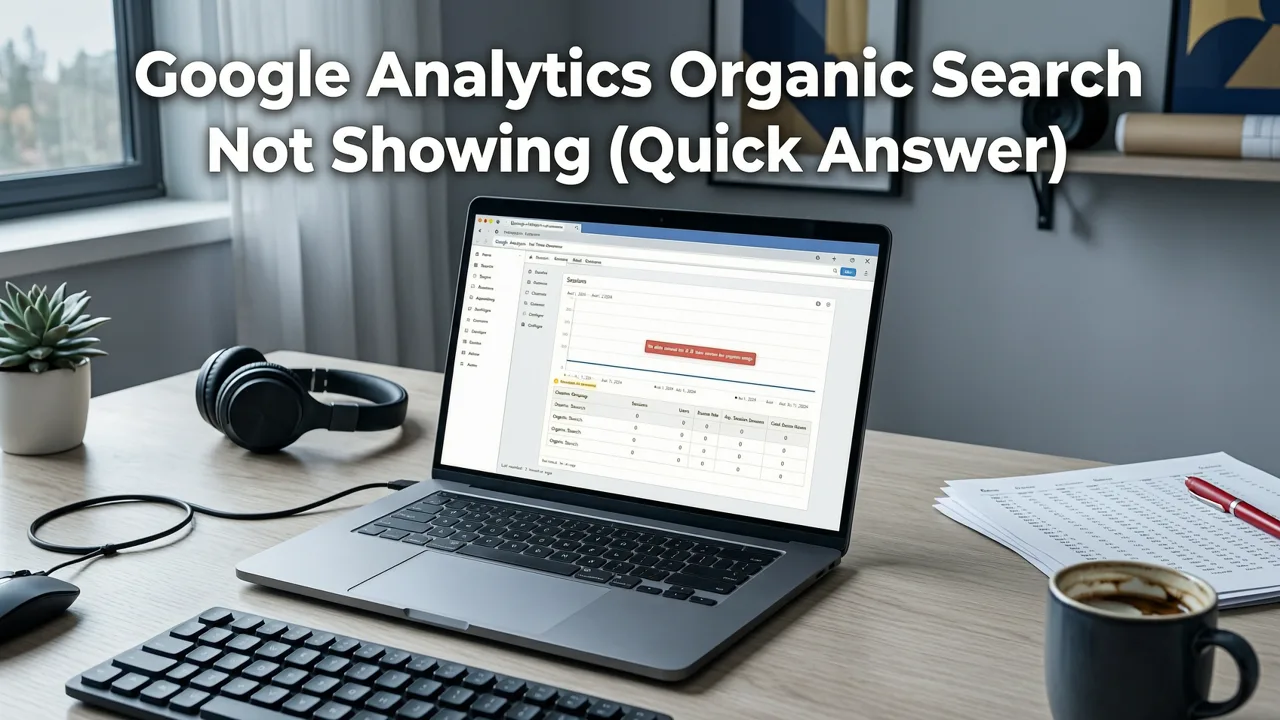
Organic search usually disappears from Google Analytics 4 for one of four reasons: the tag isn't firing on every page, a filter or date range hides it, visits land in another channel such as Direct or Referral, or consent settings limit measurement. Check the tag first, then look for Organic Search in the Traffic acquisition report.
Below is a complete diagnostic playbook that walks you through every reason organic search traffic disappears from Google Analytics 4 in 2026, plus the exact steps to bring it back. Whether you run an ecommerce brand, a SaaS startup, or a local business, this guide will help you recover accurate organic data fast.
Why Organic Search Traffic May Disappear in GA4
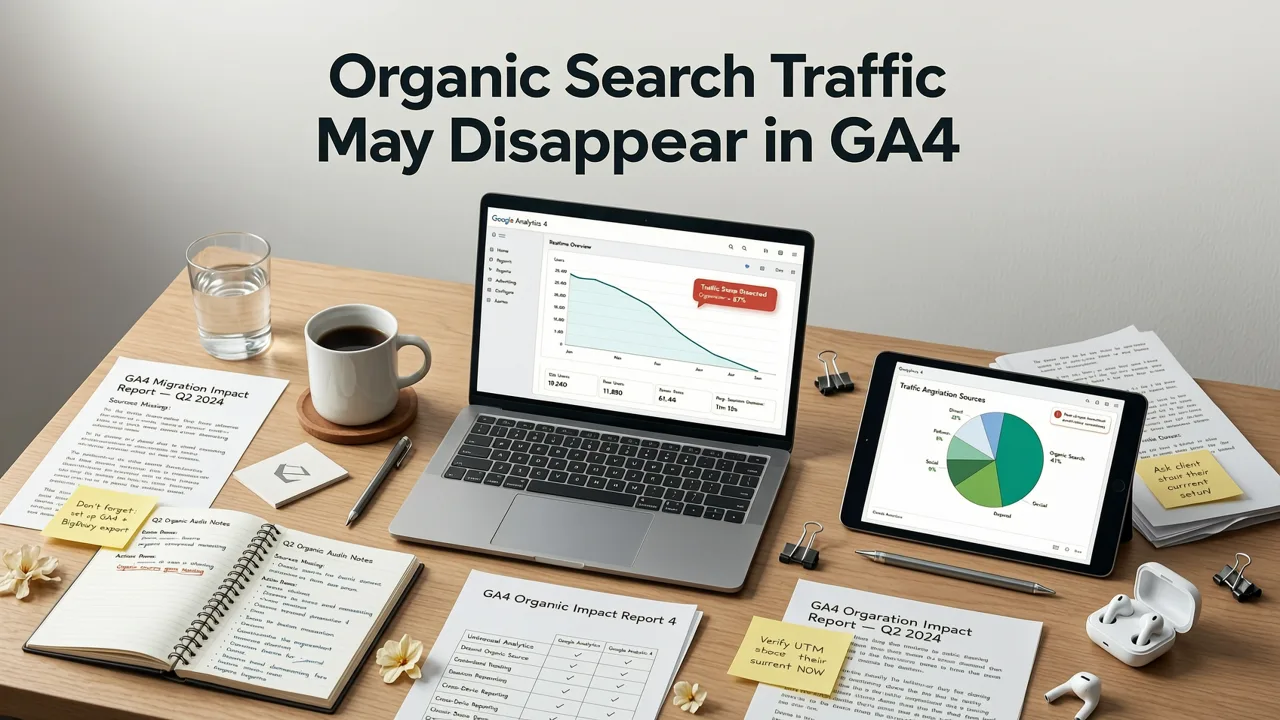
Google Analytics 4 handles channel classification, session definitions, and data streams differently from Universal Analytics. When organic search traffic suddenly stops appearing — or never appears in the first place — the issue is almost always technical, not algorithmic. Let's walk through the seven most common reasons and how to fix each one.
1. GA4 Property Is Not Properly Connected
The most fundamental reason Google Analytics organic search not showing data is that your GA4 property is not connected to your website at all. After Universal Analytics sunset in 2023, many businesses migrated to GA4 but never completed the data stream configuration.
Check the following:
- Is a GA4 property created and active in your Google Analytics account?
- Is a web data stream configured with the correct URL (including the right protocol and www vs. non-www version)?
- Is the measurement ID (G-XXXXXXXXXX) installed on every page of your site?
If any of these are missing, no data — organic or otherwise — will flow into your reports.
2. The gtag.js or Google Tag Manager Implementation Is Broken
Even if your GA4 property exists, a broken tag implementation will prevent data from reaching Google Analytics. Common issues include:
- Duplicate or conflicting gtag.js snippets
- Google Tag Manager container not published after adding the GA4 Configuration tag
- Tag firing triggers set incorrectly (e.g., only firing on homepage)
- Consent mode blocking the tag in regions where you expect traffic
Use Google Search Central documentation alongside GA4's Tag Assistant to validate that your tags fire correctly on every page load.
3. Channel Grouping Definitions Have Changed
GA4 uses a default channel grouping that classifies traffic based on the session_default_channel_group dimension. If your organic search traffic is being bucketed under "Unassigned," "Organic Social," or another category, it will not appear under the Organic Search channel.
This often happens when:
- UTM parameters are incorrectly applied to organic search links
- A custom channel grouping overrides the default rules
- Search engine referral data is stripped by a redirect or privacy tool
To fix this, review your channel grouping under Admin → Data display → Channel groups and confirm that the default Organic Search rules include all major search engines (Google, Bing, DuckDuckGo, Yahoo, etc.).
4. UTM Parameters Are Misclassifying Organic Traffic
This is one of the most overlooked reasons Google Analytics organic search not showing correctly. If your team, agency, or a third-party tool adds UTM parameters to links that appear in organic search results (for example, in structured data markup or sitelinks), GA4 may classify that traffic as referral or paid instead of organic.
Rules to follow:
- Never add UTM parameters to links that could appear in organic search results
- Reserve UTM parameters exclusively for campaigns you control (email, social, paid ads)
- Audit your schema markup and internal links for accidental UTM strings
5. Consent Mode or Cookie Banners Are Blocking Data Collection
In 2026, privacy regulations continue to tighten globally. If your cookie consent banner is configured to block the GA4 tag until the user explicitly accepts, you may lose a significant portion of your organic search data — especially from European and California visitors.
Google's Consent Mode v2 provides a framework to send anonymized pings even before consent is granted, which helps preserve baseline organic traffic data. Confirm with your developer that:
- Consent Mode v2 is implemented correctly
- The ad_user_data and ad_personalization signals are configured
- Your CMP (consent management platform) is sending the correct consent states to GA4
6. Data Stream Filters or Exclusions Are Too Aggressive
GA4 allows you to create data filters that modify or exclude incoming data. If a filter is set to exclude traffic from certain domains, IP addresses, or referral sources, it may inadvertently block organic search traffic.
Review your active data filters under Admin → Data collection and modification → Data streams → Configure tag → Data filters and check whether any filter is set to "Exclude" traffic that matches patterns commonly associated with organic search.
7. Reporting Latency or Data Thresholding
GA4 applies data thresholding to protect user privacy when the volume of data is low. If your site receives a small number of organic sessions, GA4 may withhold that data from standard reports to prevent the identification of individual users.
Signs of thresholding include:
- Organic search data appearing in real-time reports but not in standard reports
- A message at the top of your report stating that data has been removed
- Data appearing after 48 to 72 hours but not immediately
To work around this, use Exploration reports, which are not subject to the same thresholding rules, or adjust your privacy settings under Admin → Data collection and modification → Data streams → Google signals.
How to Diagnose the Issue Step by Step

Here is a systematic process to pinpoint exactly why your organic search data is missing.
- Verify the GA4 property and data stream. Confirm the measurement ID is present in your site's source code.
- Test with Google Tag Assistant. Fire a test event and confirm GA4 receives it.
- Check real-time reports. Visit your site from an incognito window and see if a session appears in GA4 real-time data.
- Review the session_default_channel_group dimension. In an Exploration report, add this dimension and see where organic traffic is being classified.
- Audit UTM parameters. Use a site crawler or manual review to ensure no UTM tags exist on organic-facing links.
- Inspect consent mode implementation. Verify that the GA4 tag fires (at minimum in anonymized mode) before consent.
- Check data filters. Confirm no exclusion filter is blocking organic referral sources.
For a deeper walkthrough on isolating organic data once it starts flowing, read our guide on how to filter organic traffic in GA4.
How GA4 Defines Organic Search Traffic
Understanding how GA4 classifies organic search helps you troubleshoot faster. GA4 labels a session as "Organic Search" when:
- The session's first referrer is a recognized search engine (based on Google's internal referrer list)
- No UTM parameters override the channel classification
- The session is not attributed to a paid campaign, social network, or email source
If any of these conditions fail, GA4 assigns a different channel — or "Unassigned" — which is why your organic search numbers look empty. For a full breakdown, see our article on how to track organic search traffic in Google Analytics 4.
Common Mistakes That Hide Organic Traffic in GA4
| Mistake | Impact | Fix |
|---|---|---|
| Missing GA4 measurement ID on site pages | No data collected at all | Install gtag.js or GTM container on every page |
| UTM tags on organic search links | Organic traffic classified as referral or campaign | Remove UTMs from schema markup and organic-facing links |
| Custom channel grouping overriding defaults | Organic traffic bucketed incorrectly | Reset to default channel grouping or add missing search engines |
| Consent mode blocking GA4 tag | Reduced or missing organic session data | Implement Consent Mode v2 with anonymized pings |
| Aggressive data exclusion filters | Organic referral sources filtered out | Review and adjust data filters in GA4 admin |
| Data thresholding on low-traffic sites | Organic data hidden in standard reports | Use Exploration reports or adjust Google Signals settings |
| GTM container not published | GA4 config tag never fires | Publish GTM workspace after adding GA4 tag |
How to Recover Lost Organic Search Data
Unfortunately, GA4 does not backfill data that was never collected. If your tracking was broken for weeks or months, that data is gone. However, you can take steps to ensure accurate data going forward and supplement your analytics with other tools.
- Fix the tracking issue immediately. Once the GA4 tag fires correctly, data will begin accumulating within hours.
- Use Google Search Console as a parallel source. GSC tracks impressions, clicks, and average position directly from Google's search index. It does not rely on client-side JavaScript, so it captures data even when GA4 cannot.
- Connect GSC to GA4. Under Admin → Product links → Search Console links, link your GSC property to GA4 to import query-level data into your analytics reports.
- Build a custom organic dashboard. Use Looker Studio to combine GA4 session data with GSC query data for a complete picture. Our roundup of the best GA4 organic traffic dashboard templates includes free templates you can deploy today.
How to Track Organic Keyword Performance in GA4
Once your organic search data is flowing correctly, the next step is connecting sessions to the keywords driving them. GA4 does not natively display keyword-level data, but linking Google Search Console adds a Queries report that shows which searches bring people to your site.
For a complete walkthrough, check out our guide on how to track organic keyword performance in GA4. The key steps include:
- Link your Search Console property to GA4
- Publish the Search Console collection (Reports > Library) and open its Queries report
- Use the Google organic search traffic report to see which landing pages lead to conversions
- Set up automated alerts for significant traffic changes
Preventing Future Organic Search Data Loss
Once you have resolved the immediate Google Analytics organic search not showing issue, put safeguards in place to catch problems early.
- Set up a GA4 health check alert. Use Looker Studio or a monitoring tool to alert you when organic sessions drop below a baseline threshold.
- Audit your tag implementation quarterly. Confirm that the GA4 measurement ID is present and firing on all pages.
- Document your UTM conventions. Maintain a shared document that specifies when and how UTMs should be used, preventing accidental misuse.
- Review channel groupings after every GA4 update. Google periodically updates default channel groupings, and a major update could reclassify your traffic.
- Use Schema.org structured data correctly. Proper markup helps search engines understand your content and can improve the quality of organic referrals reaching your site.
When to Bring in an SEO Agency
If you have worked through every step above and organic search data is still not appearing correctly, the issue may be more complex — such as a server-side rendering problem, a JavaScript framework that blocks crawlers, or a migration that broke your tracking architecture. At that point, partnering with an experienced SEO and analytics team can save you weeks of troubleshooting and help you build a measurement infrastructure that scales with your business.
Final Thoughts
The Google Analytics organic search not showing problem is almost always solvable with a methodical technical audit. Start with the basics — confirm your GA4 property, verify your tag implementation, and review your channel groupings. Then layer in consent mode checks, data filter reviews, and UTM audits. Once the data starts flowing again, connect Google Search Console and build a dashboard that gives you full visibility into your organic performance.
If you want to go deeper on any of these steps, explore our related guides on filtering organic traffic, tracking organic search, and building the best GA4 organic traffic dashboard — all designed to help you measure what matters and grow your organic presence with confidence.


